This domain is for sale. If interested, please, contact us at pelhrimov[AT]yahoo.com for more details.
Group policy configuration example in Windows XP
Group policy configuration example in Windows XP
This page provides two examples of how a group policy can be used in Windows XP and how it can be edited.
A few words before we get to the example...
Details about what a group policy is can be found at another page on this server called Group policy.
The How to edit group policy? page describes the Group Policy Editor snap-in and how to add it to your Microsoft Management Console (MMC). The Group Policy Editor is the tool that is used to make changes to group policies.
Group policy example - prevent access to the command prompt
The following example illustrates the use of the Group Policy Editor to customize the Windows XP user interface.
In this example, we will use the Group Policy Editor to temporarily disable access to the Windows command prompt.
Preventing users from being able to access the command prompt is very easy. In can be done through the following steps:
1. Start the Group Policy Editor. You can do this either by going through the Microsoft Management Console (MMC) or simply executing the GPEDIT.MSC application. See the How to edit group policy? page for more details about this step. If you open the Group Policy Editor snap-in from the command line (or the Run menu) via a direct call to the GPEDIT.MSC, it will automatically load the Local Computer Group Policy Object. If you go through the MMC, you will get to the same place but using a longer route.
2. Expand the branch called User Configuration.
3. The next steps is to expand Administrative Templates under User Configuration.
4. Then click the System branch.
5. When you look at the right pane, you will see a number of items there. One of them is called Prevent access to the command prompt.
6. Right click the Prevent access to the command prompt and go to Properties.
7. Select Enabled.
8. Close OK a few times to close all the screens that took you to this place.
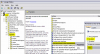
If you go to the Start menu, click Run and type cmd now, you will get to the command prompt. However, you will get a Windows message saying: The command prompt has been disabled by your administrator.
Follow the same steps to enable access to the command prompt again. Select Not configured instead of Enabled.Group policy example - remove the Run button from the Start menu
We disabled users from accessing the command prompt using the Windows group policy. It is also possible to completely remove the Run button from the Start menu. This will be accomplished through a group policy again.
Removing the Run button from the Start menu can be done through the following steps:
1. Start the Group Policy Editor.
2. Expand the branch called User Configuration.
3. The next steps is to expand Administrative Templates under User Configuration.
4. Then click the Start Menu and Taskbar branch.
5. When you look at the right pane, you can find one item called Remove Run menu from Start menu.
6. Right click the Prevent access to the command prompt and go to Properties.
7. Select Enabled.
8. Close OK a few times to close all the screens that took you to this place.
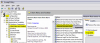
If you go to the Start menu now, you will see that the Run button is not there. Follow the same steps to enable the Run button again. Select Not configured instead of Enabled.
What about the Local Security Policy?
You can read about the difference between the Group Policy Editor and the Local Security Policy Editor on the next page: Difference between gpedit.msc and secpol.msc.
.
Discuss this article or this topic in our discussion forum:
(The table bellow shows a list of 8 most recent topics posted in our discussion forum. Visit our discussion forum to see more. It is possible the links below are not related to this page, but you can be certain you will find related posts in the discussion forum. You can post one yourself too.)
Email this article to a friend:
.
How can I link to this web page?
It is easy, just include the code provided below into your HTML code.
 Delicious
 Digg
Digg StumbleUpon
 Furl
Furl Facebook
 Google
 Yahoo
Yahoo
Maxi-Pedia
Search Maxi-Pedia
Interesting Topics
- Windows Server 2008 - What is new?
- Fastdetect boot.ini switch
- Citrix MetaFrame Access Suite
- Change icon greyed out
- Terminal Services
- Difference between ODBC and OLEDB
- Disable fast user switching in Windows 7
- What is a DLL Dynamically Linked Library?
- What is the difference between gpedit.msc and secpol.msc?
- 32 Bit or 64 Bit Operating System
Related Topics
Favorite Topic
More Details
Selected Topics
Maxi RSS Feeds


